> For the complete documentation index, see [llms.txt](https://docs.neoncloud.com/llms.txt). Markdown versions of documentation pages are available by appending `.md` to page URLs; this page is available as [Markdown](https://docs.neoncloud.com/get-started/virtual-infrastructure-setup-and-vm-deployment.md).
# Virtual Infrastructure Setup and VM Deployment
The following article will guide you tto create a Virtual Network, Subnet, Virtual Router etc. so that we can proceed with VM deployment in our private nework.
{% stepper %}
{% step %}
### **Create a Virtual Network**
**Purpose & Summary:**
Create a private virtual network exclusive to your project that acts like a secure switch within the cloud, enabling VMs to communicate internally without exposure. \
**Details:** This network is the foundation for VM communication and network isolation. The network should be “Up” and assigned to your project. \
**Steps:** \
Go to Networking → Networks.
Click on Virtual Networks
Click Create Network.\\
Select your project (e.g., web-project) and then Name the network (e.g., private-net).\

After filling the details click on Create.
{% endstep %}
{% step %}
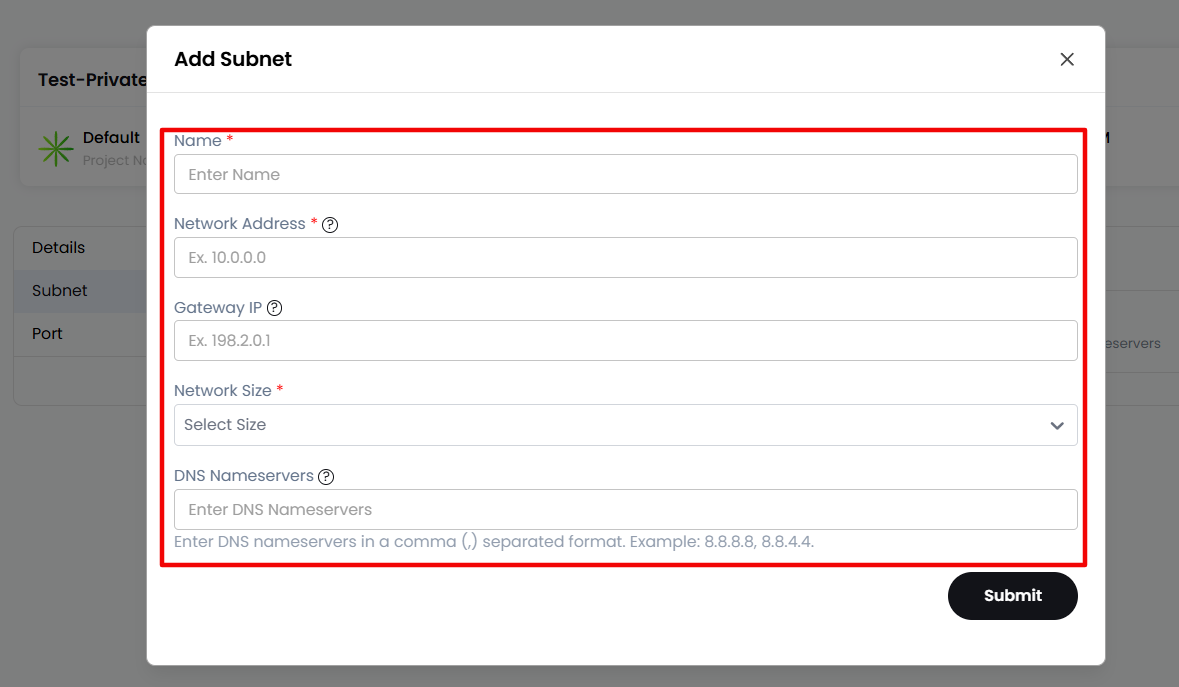
### **Add a Subnet**
Under the network we just created, we now need to create a subnet.
**Purpose & Summary:**
\
Define a subnet within your virtual network that specifies the IP address range your VMs will use, e.g., 192.168.50.0/24. \
Configure DHCP to automatically assign IP addresses and specify DNS servers for name resolution.
\
**Details:**
\
The subnet determines the IP range and gateway for the network. You should avoid IP
\
conflicts with your existing networks.\
**Steps:**
\
When creating your network, proceed to add a subnet.
\
Provide:
\
Subnet Name (e.g., private-subnet)
\
Network Address (CIDR), e.g., 192.168.50.0/24
\
Gateway IP (usually 192.168.50.1)
\
Enable or disable DHCP as per your setup (default enabled)
\
Add DNS Nameservers (8.8.8.8, 1.1.1.1)
{% endstep %}
{% step %}
### **Create a Virtual Router**
**Purpose & Summary:**
\
Set up a virtual router to enable routing between your private network and external networks (such as the internet), acting as a Layer 3 device managing traffic flow.
\
**Details:**
\
The router must be active (Admin State: Up) and assigned to your project.
\
**Steps:**
\
Navigate to Networking → Routers.
Click Create New, Select the Project, name the server (e.g., internet-router) and then click on Review and Create.
{% endstep %}
{% step %}
### **Attach Subnet to Router**
**Purpose & Summary:**
\
Connect the subnet to the router by adding the subnet interface to allow VMs on that subnet to route traffic outside the private network.
\
**Details:**
\
This links your private subnet with external networks via the router.
**Steps:**
\
Open your newly created router (internet-router).
\
Go to the Interfaces tab.
\
Click Add Interface.
\
Select your subnet (e.g., private-subnet).
\
Confirm the interface addition
{% endstep %}
{% step %}
### **Create a Security Group (Restrict by IP)**
**Purpose & Summary:**
\
Configure a security group to control inbound and outbound traAic to your VM, acting like a virtual firewall. \
Restrict SSH access to your specific public IP for security.
\
**Details:**
\
Default security usually denies inbound access; explicitly allow needed ports and IP ranges.
\
**Steps:**
\
Go to Network → Security Groups.
Create a new group called (e.g., ssh-only).
Upon Submission, click on the name of the particular Security Group and add an ingress rule:
\
Protocol: TCP
\
Optionally add a description
\
Port Range: 22 (SSH)
\
Remote IP Prefix: Your public IP with /32 mask (e.g., 203.0.113.25/32)
\
Optionally, add rules for HTTP (80) and HTTPS (443) if hosting web apps.
\
**Tip:**
\
Find your public IP at whatismyipaddress.com.
{% endstep %}
{% step %}
### **Launch a Virtual Machine (Instance)**
**Purpose & Summary:**
\
Deploy a virtual machine in your environment with the OS, compute resources, network, and security settings defined.
\
**Details:**
\
Select an image (Linux/Windows), an VM plan for CPU/RAM sizing, and upload/select an SSH key or set a password for access. Attach the VM to the private network and security group.
\
**Steps:**
\
Navigate to Virtual Machines → Instances (VMs).\\
Click Create Instance.
Provide:
\
Compute Offering (e.g., GP1.micro)\
OS Image (e.g., Ubuntu 22.04)
Disk Offering (e.g., Standard NVMe 10 GB)\
Network: Attach to your private network (private-net).\
Security Group: Select the group you created (e.g., ssh-only).\
Key Pair: Upload or select your SSH public key (ssh-rsa
\
AAAAB3NzaC1...your-key...) or define a strong password.
\
Startup Script: If you have start script while provisioning VM.\
Monitoring: Enable/Disable
Server Name & Server Hostname (e.g., web-server)\
Review & Deploy the VM.
{% endstep %}
{% step %}
### **Allocate and Assign a Floating IP**
**Purpose & Summary:**
\
Assign a floating (public) IP to your VM to enable internet access, mapping a public IP to the VM’s private address.
\
**Details:**
\
Floating IPs provide NAT (network address translation) so your VM can be accessed externally without exposing its internal IP.
\
**Steps:**
\
Go to Networking → Floating IPs.
If you don't have any existing public IPs, Buy one.
Allocate a new floating IP.
\
Associate it with your VM instance (e.g., web-server).
{% endstep %}
{% step %}
### **Final Notes**
After deploying, test connectivity by SSHing to the floating IP.
\
Verify security group rules to ensure only intended ports/IPs are open.
{% endstep %}
{% endstepper %}
---
# Agent Instructions
This documentation is published with GitBook. GitBook is the documentation platform designed so that both humans and AI agents can read, navigate, and reason over technical content effectively. Learn more at gitbook.com.
## Querying This Documentation
If you need additional information that is not directly available in this page, you can query the documentation by asking a question.
Perform an HTTP GET request on the following URL with the `ask` and `goal` query parameters:
```
GET https://docs.neoncloud.com/get-started/virtual-infrastructure-setup-and-vm-deployment.md?ask=&goal=
```
`ask` is the immediate question: it should be specific, self-contained, and written in natural language.
`goal` is what the user is ultimately trying to achieve, the reason they need the answer. Sharing it helps GitBook give you a better, more relevant answer. A goal is most helpful when it describes the outcome the user wants rather than restating the question. For example, with `ask=how do I create an API token`, a goal like `automate deployments from our CI pipeline` lets GitBook tailor the answer to that use case.
The response will contain a direct answer to the question and relevant excerpts and sources from the documentation.
Use this mechanism when the answer is not explicitly present in the current page, you need clarification or additional context, or you want to retrieve related documentation sections.